


How to uninstall programs in Windows 11: How to completely remove software & apps
In Windows 11, programs can be quickly removed via the Start menu, Settings, or the classic Control Panel. For stubborn software, administrative co...

It's not uncommon for a laptop to fail to start, with the screen remaining black and the user unable to access it. Often, the fan is still audible, LEDs are lit, and the laptop otherwise appears to be functioning. What are the possible causes and solutions for the problem of a "laptop not starting," and is resetting the laptop really the only option?

While Windows 10 is generally reliable software, it's not entirely bug-free. Currently, many users are complaining about a bug that causes the screen to remain black after sleep or standby mode. The laptop itself remains functional, though this isn't apparent to the user. If you're now thinking you're facing the inevitable "laptop won't start, hard drive recovery" scenario, you can relax for now. In most cases, the problem isn't serious and can be fixed. Of course, the cause could also be a problem with the display itself, or a faulty driver installation.
First, check whether the laptop even starts up, or if only the display is affected. Aspects to consider here are:
If everything is working correctly, an external monitor can help. Connect it and then start the laptop. If the external monitor works and displays the laptop's screen, the problem is usually with the laptop's display itself. If it's damaged, professional repair is often the only solution. If the external monitor also refuses to display anything, the problem is often with the laptop's hardware. computerThe graphics card can play a crucial role. Professional help should be sought in this case as well.
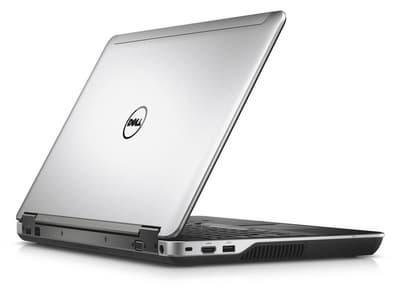
Is a Update The cause of the error can usually be fixed relatively easily. The following procedure should be followed:
Excessive dust accumulation can lead to overheating, which can cause problems after updates. A quick Basic cleaning can help:

So you can see for yourself that there's often no reason to panic if the screen stays black for a while. The suspicion "My laptop won't start, all my data is lost!" This issue doesn't usually become chronic. Often, minor problems are the cause, but these can usually be resolved quickly. Of course, if all tips and tricks fail, a repair is often unavoidable. Generally, all data stored on a laptop should be backed up externally to prevent unnecessary data loss.

In Windows 11, programs can be quickly removed via the Start menu, Settings, or the classic Control Panel. For stubborn software, administrative co...

The Windows 11 Start menu can be flexibly customized to your liking. You can move icons via drag and drop, create folders, and move the taskbar bac...

Visually and in terms of gaming, Windows 11 Home and Pro offer the same performance and interface. However, the Pro version differs with exclusive ...

You want to upgrade from Windows 10 to Windows 11, but you're not seeing an automatic system upgrade option? There can be several reasons for this,...

Buying a laptop the wrong choice: Why an expensive new purchase is often the worst option Year after year, companies invest immense sums in new ...

Computer Refurbished Grade A & Co.: The simple guide to condition classifications of used IT equipment More and more users are opting for a r...


